On this page
Data Recording and Management
Jobs & Sessions
Keep each project in its own job, with separate point files, observation logs, and exports.
Within a job, every recording run writes its own session — one .sht point file per session, named by date and time. The Files page lets you view points from all sessions of the active job or filter to a single session, and the same session picker drives Stakeout target selection.
- The active job receives everything the unit records; the Files page and the touch screen's Files screen both show it.
- Create a new job or switch jobs from the Files page in the Web UI.
- Favorites and point codes are device-wide — they follow you across jobs.
- Existing files from earlier firmware are moved into a
defaultjob automatically on first boot. Nothing is deleted.
Exporting & Importing Points
From the Files page, export the active job's points as:
- CSV — spreadsheet-ready; includes an orthometric ground column (labeled with the geoid model) when a geoid is active. See Heights & Orthometric Elevation. The Easting/Northing columns are local grid metres from the first point, not UTM — see UTM Coordinates.
- GeoJSON — unavailable in current firmware because the coordinate frame and epoch are not recorded. Export CSV, confirm both with your correction provider or control-point source, then convert in your GIS.
- DXF — CAD-ready, with grid coordinates anchored at the first point.
Import CSV brings a point list into a job — load design points from the office and use Stakeout in the field.
Recording Observations
Record GNSS observations for post-processing or as a backup to your real-time survey. A green blinking LED indicates recording; confirm the status in the web UI or on the touch screen.
Filename format: dot###m#d#y#h#m#s#gpst (in GPS time indicating the start date of the record)
The observation file extension is .rub. Convert it to RINEX with the free converter at robognss.com/tools/convert-to-rinex, which takes the .rub file as it is and needs no account, or with the RoboDot Utility Software.
Setup
For automatic recording, enable Record on Boot. Recording starts when the device has a GNSS fix.
For manual control, use Rec/Stop on the Status or Rover page.
Recording Shots
Rover points are stored in a .sht CSV file. See Rover Mode for point collection and fields.
File Access
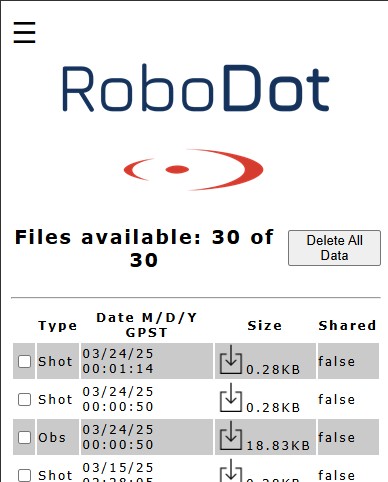
Web UI Files Menu
Open Files in the web UI to download .rub observations and .sht points, or share files with your company through Wingman.
Download time depends on file size and connection quality.
Downloading
Location: Web UI, Files Page
File types:
- .rub: Raw observations
- Convert to RINEX for post-processing — see above
- Used in post processing workflows
- .sht: Position data (Rover mode)
- Contains rover shots generated by "Mark Location"
- Also created for base points
- Comma separated text file.
Connection services (BLE/TCP/NTRIP) are paused during file download.
Sharing Files
On the Files page, select a file and choose Share Files to upload it to your Wingman account.
Uploaded observations appear under Observations at robota.us, listed with the date, device, mode, session length and location — and can be downloaded from there by anyone with access to the account.