On this page
Connecting to the Device
Connect by Wi-Fi to use the web UI, or send positioning data to another device over BLE, USB serial, TCP, or UDP.
Wifi
Use Access Point mode for a direct local connection. Use Station mode to join a hotspot or office network for internet services such as VRS corrections and firmware updates.
RoboDot as Access Point
Connect a phone, computer, or controller to RoboDot’s Wi-Fi to open the web UI or receive positioning data and corrections. No internet connection is needed for this local link.
Setup
- Power on the RoboDot device
- Connect via PC or smartphone to Wi-Fi access point RoboDot_### (where ### is the device's unique serial number)
- Type the IP address displayed on the main touch screen into a web browser to see the Web UI
Tips
- No password is required to join RoboDot wifi
- Don't use https. Just type the IP address into the address bar.
- RoboDot does not provide internet access but does create a local network.
- RoboDot Access Point allows up to four Wi-Fi clients at a time.
RoboDot as a Station
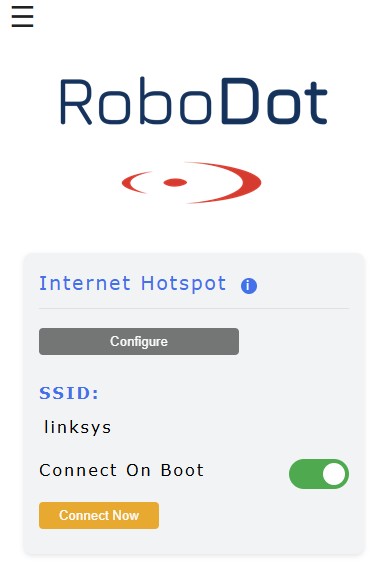
Join a Wi-Fi network with internet access to use VRS corrections, upload files, or download firmware updates. Your browser must also have internet access for online maps and sharing.
Steps
- Connect a device directly to the RoboDot_### Wi-Fi
- Use a web browser on your device to navigate to the IP address displayed on the touch screen
- Set up hotspot credentials in the settings page under the "Configure" form and press Save Profile & Use — the network is stored as a named profile you can reselect any time
- Click "connect now" to connect to the hotspot
- Enable "Connect on boot" in the settings page for automatic connection on startup for subsequent uses.
- Optionally enable "Keep Retrying" so the device automatically rejoins the network whenever it reappears — recommended for permanent installations.
Once RoboDot connects to the new network, you can only access it on that network and IP as displayed on the touch screen.
If the network drops or is out of range, reconnect through the RoboDot access point. Use the address shown on the screen. See Connection Profiles for saved networks and retry settings.
Internet access on browser
Some pages only work properly when the browser has internet access (e.g., Map page, Share page). Internet access is not strictly required for Base/Rover operations.
Using iPhone
iPhone can connect directly to RoboDot Wi-Fi while still enabling applications to use data for internet
Using Android
If mobile data is unavailable while your Android device is connected to RoboDot Wi-Fi, connect RoboDot as a Station to the phone’s hotspot instead.
TCP
To send NMEA from RoboDot to other devices over TCP connection as a Rover, or to send RTCM3 corrections to other devices as a Base:
Enable the TCP Server in the settings page. The TCP server is on port 1000.
UDP
To send RTCM3 from RoboDot to other devices via UDP:
Enable UDP output and set your desired port in the settings page.
Bluetooth Low Energy
To send NMEA from RoboDot to other devices over bluetooth use BLE Rover mode.
Serial Outputs
The USB-C port provides CDC serial communication. Output follows the operating mode:
| Mode | Output Type |
|---|---|
| Base | RTCM3 |
| Rover | NMEA |
| Repeater | RTCM3 |
The serial port should be configured to 115200 baud.
LoRa Input/Output
See LoRa Radio for antenna setup and correction sharing between RoboDots.